Disclosure: Hagaha may earn a commission from some links on this site. This article contains no affiliate links at the time of writing. See our Affiliate Disclosure.
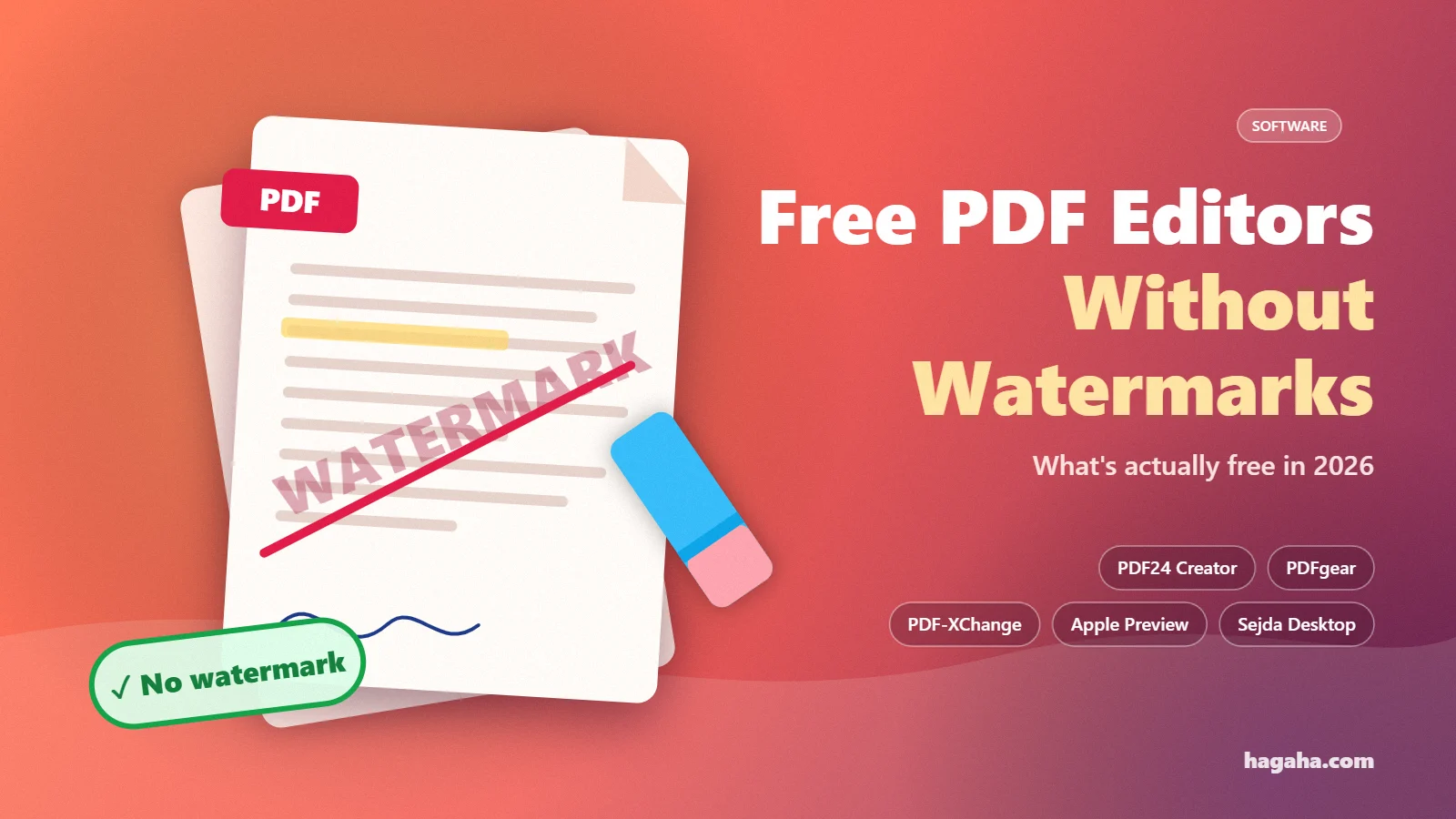
Finding a free PDF editor without watermark stamps is harder than it sounds: many “free” tools let you do the work, then stamp a watermark on the export, or cap you at a few files a day. This guide sorts the genuinely free options from the “free until you save” ones. It relies on what each developer officially states.
Testing status: the claims below come from official vendor documentation (checked October 30, 2026). We have not yet exported test files from every tool. The “watermark?” column says exactly what each vendor states, and says “not stated” where they don’t. A testing checklist is at the end.
Quick comparison
| Tool | Platforms | Cost | Watermark? (per the official source) | Main limits |
|---|---|---|---|---|
| PDF24 Creator | Windows only | Free for private and commercial use | Vendor says “completely free of charge and without any restrictions” | Windows only; no Mac or Linux |
| PDFgear | Windows, Mac, iOS, Android, online | Free | Vendor says “completely free and without signing up”; watermarks not explicitly addressed | Test exports yourself |
| PDF-XChange Editor (free mode) | Windows | Free for private and commercial use | Yes, on licensed (PRO-marked) features; free features export clean | Avoid PRO-marked tools or buy a licence |
| Apple Preview | macOS (built in) | Free with your Mac | No watermark (built-in system app) | Cannot edit existing text content |
| Sejda PDF Desktop (free) | Windows, Mac, Linux | Free with limits | Not stated | 3 tasks/day; docs up to 50MB and 200 pages; OCR up to 10 pages |
The options in detail
PDF24 Creator: best free choice for Windows
PDF24’s official page says:
- Cost: it “can be used completely free of charge and without any restrictions”, for both private and commercial purposes.
- Offline: it runs offline, and “Files remain locally on your PC and are NOT uploaded to the Internet.”
- Tools: merge and split, compress, OCR to create PDFs with a text layer, and a drag-and-drop editor for assembling pages.
Best for: Windows users handling contracts, invoices or anything private who want local, offline processing. Limitation: Windows only. PDF24 states Linux and Mac are not supported.
PDFgear: the broadest free platform coverage
PDFgear describes itself as “completely free and without signing up”. It offers apps for Windows, Mac, iOS and Android, plus online tools. Advertised features:
- Editing PDFs to be “as editable as Microsoft Word”.
- OCR in 30+ languages.
- Signing.
- Conversion between PDF and Office or image formats.
- An AI chat feature for summarising documents.
Best for: people who switch between a phone and a computer and want one free tool everywhere. What we can’t yet confirm: the homepage doesn’t explicitly address watermarks or usage caps. Run your own test export (checklist below) before relying on it for client documents.
PDF-XChange Editor: powerful, but know which tools are “PRO”
The developer’s free-version page explains:
- The free Editor is “free for both private and commercial use”, provided it is not bundled with other software for financial gain.
- The catch: menu items marked with a PRO symbol “can still be used, but watermarks will be present on output content.” Those watermarks cannot be removed without a licence.
How to stay watermark-free:
- Use only the tools without the PRO marker.
- Users and reviewers report an option under Preferences → Registration to hide licensed features from menus. Confirm this setting in your version.
Best for: Windows power users who want serious annotation and markup tools for free and are disciplined about avoiding PRO features.
Apple Preview: already on every Mac
Apple’s Preview User Guide lists built-in PDF tools:
- Fill out and sign PDF forms.
- Highlight, underline and add notes.
- Combine PDFs; add, delete or move pages; crop and rotate.
- Reduce file size and password-protect a PDF.
Limitation: Preview can select and copy text but does not edit existing text content. To change a typo inside a paragraph, you need another tool.
Best for: Mac users who mainly fill forms, sign, annotate and rearrange pages.
Sejda PDF Desktop: clean tools, daily limits
Sejda’s desktop page lists the free limits:
- 3 tasks per day.
- Documents up to 50MB and 200 pages.
- OCR up to 10 pages.
- Merging up to 30 files and 50 pages.
It runs on Windows, Mac and Linux. Paid plans start at $7.50/month (web) or $63/year (desktop and web), per its pricing page.
Best for: occasional users who need a polished editor a few times a day, including Linux users.
A note on online PDF editors and privacy
Browser-based editors are convenient, but you upload your document to someone else’s server. For tax forms, contracts, medical or HR documents:
- Prefer an offline desktop tool such as PDF24 Creator (Windows) or Apple Preview (Mac).
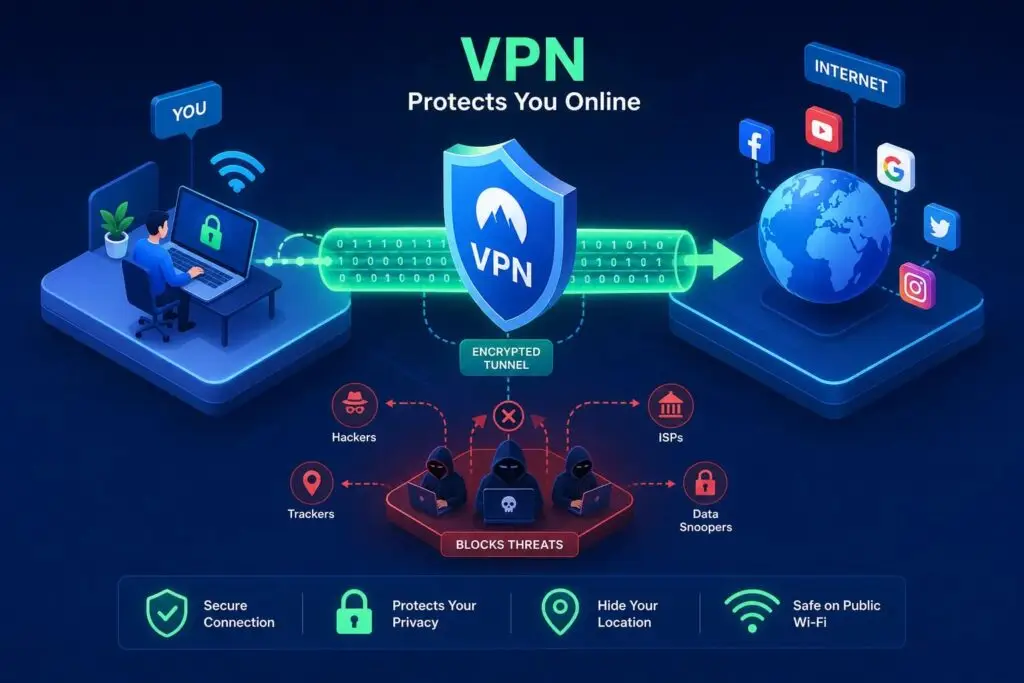
- If you must use an online tool, read its file-retention policy first, and use a trusted connection (see how a VPN protects your internet connection).
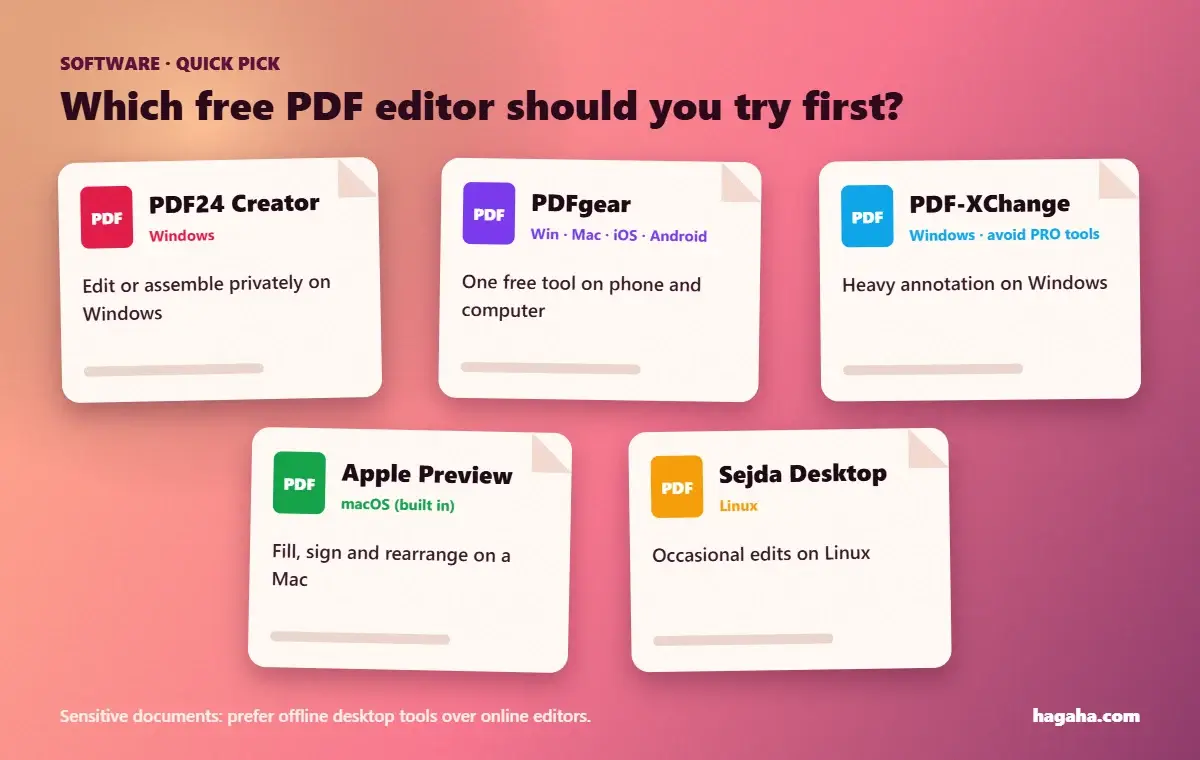
How to choose a free PDF editor without watermark problems
| You need to… | Try first |
|---|---|
| Edit or assemble PDFs privately on Windows | PDF24 Creator |
| Use one free tool across a phone and a computer | PDFgear (test exports first) |
| Annotate heavily on Windows | PDF-XChange Editor (avoid PRO tools) |
| Fill, sign and rearrange on a Mac | Apple Preview |
| Edit occasionally on Linux | Sejda PDF Desktop (3 tasks/day) |
Who may need a paid editor instead:
- Teams that need reliable text editing, redaction or Bates numbering for legal work.
- Anyone who needs guaranteed support.
Free tools rarely promise either.
Frequently asked questions
Is there a truly free PDF editor with no watermark? Yes, according to their developers:
- PDF24 Creator (Windows) is free “without any restrictions”.
- Apple Preview is built into macOS.
- PDF-XChange Editor is free without watermarks as long as you avoid PRO-marked features.
PDFgear describes itself as completely free. Confirm with a test export.
Why did my free PDF editor add a watermark? Usually because you used a feature reserved for the paid version. PDF-XChange, for example, watermarks output created with PRO-marked tools. Undo the edit, or use a free alternative for that step.
Can I edit PDF text for free on a Mac? Apple Preview can annotate, sign and rearrange pages, but it cannot edit existing text. PDFgear and Sejda both offer Mac apps with text editing (Sejda limits free use to 3 tasks a day).
Are online PDF editors safe? They can be. But your file leaves your computer, so for sensitive documents use an offline editor and read the service’s retention policy.
Conclusion
- Windows users: PDF24 Creator is the safest genuinely free starting point. It is offline and free for commercial use.
- Mac users: start with Apple Preview, and add PDFgear or Sejda when you need text editing.
- Whatever you choose: export one test file before trusting the tool with an important document.
References (checked 2026-10-30)
- PDF24 — PDF24 Creator. https://tools.pdf24.org/en/creator (free without restrictions, private and commercial use; Windows only; offline; features.)
- PDFgear — Homepage. https://www.pdfgear.com/ (“completely free and without signing up”; platforms; OCR 30+ languages; features.)
- PDF-XChange — Free version / demo limits. https://www.pdf-xchange.com/product/pdf-xchange-editor/demo_limits (free for private and commercial use; PRO features add watermarks; not removable without a licence.)
- Apple Support — Preview User Guide for Mac. https://support.apple.com/guide/preview/welcome/mac (PDF features; no text-content editing section.)
- Sejda — Sejda PDF Desktop. https://www.sejda.com/desktop (free limits; platforms.)
- Sejda — Pricing. https://www.sejda.com/pricing ($5 week pass, $7.50/month web, $63/year desktop and web.)